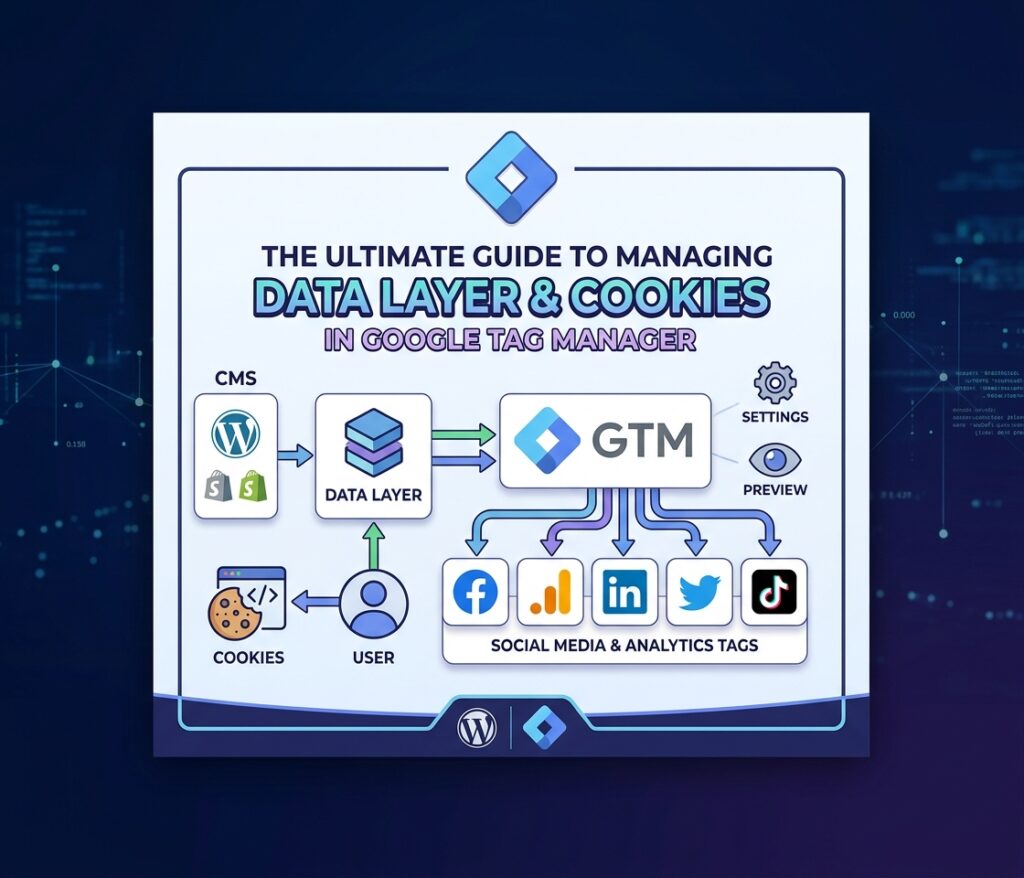
The Ultimate Guide to Managing Data Layer & Cookies in Google Tag Manager
Extracting clean and accurately formatted tracking data is critical for advertising and analytics platforms like GA4, Meta (Facebook), TikTok, and Google Ads. Raw Data Layer values often need cleaning, type casting, array conversions, or privacy normalization.
This complete guide will walk you through every feature of our custom GTM variable template from A to Z, showing you how to handle both single product and multiple product data layers with ease.
1. Checking Your Website’s Data Layer
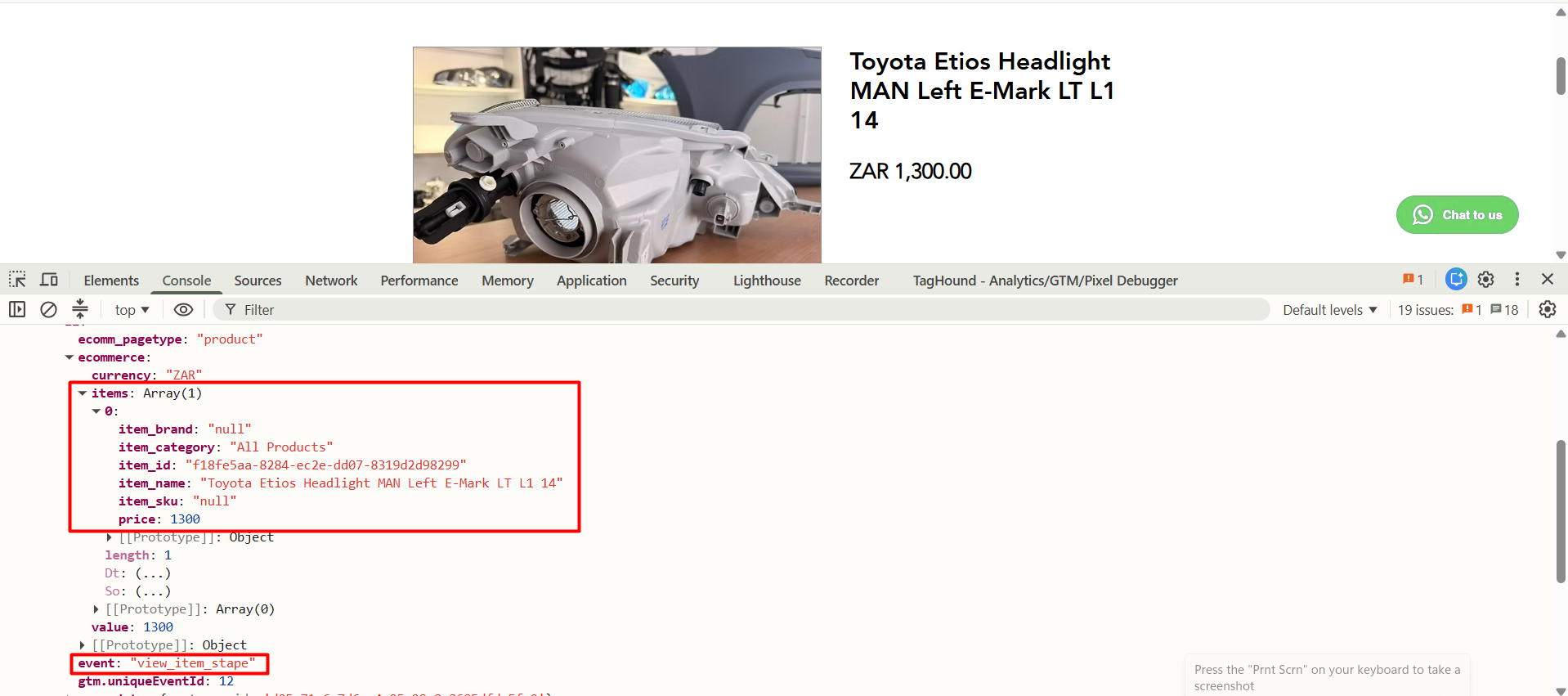
Before configuring GTM variables, make sure your website backend pushes event data to the Data Layer.
How to Check in Google Chrome:
- Open any page on your website.
- Right-click and choose Inspect (or press
F12). - Switch to the Console tab.
- Type
dataLayer and press Enter.

2. Extracting Data for a Single Product
When your page contains only one product (such as a view_item event), you can pull values directly using standard dot notation or array indexes.
Configuration Steps:
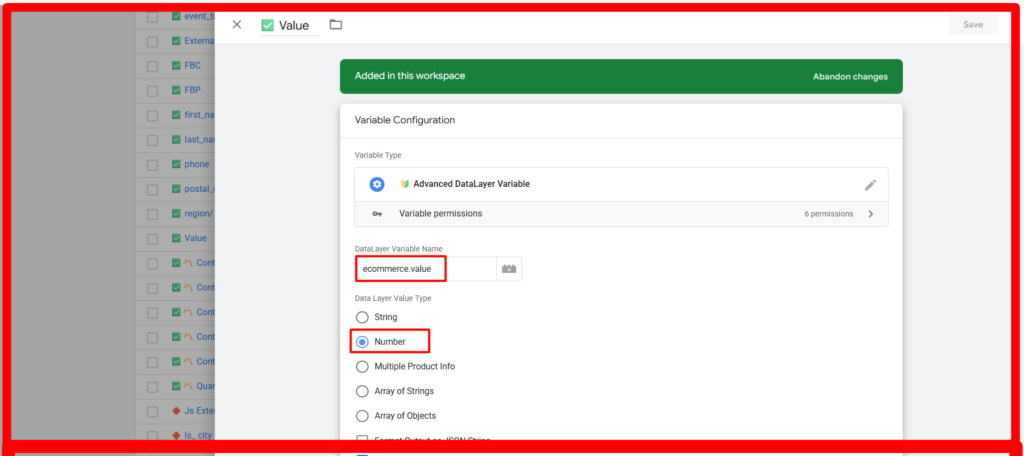
- In GTM, create a new variable using our Custom Variable Template.
- In DataLayer Variable Name, type the exact path to your key.
- Choose your Data Layer Value Type (
String or Number).
| Target Information | Data Layer Variable Name | Output Example |
|---|
| Total Order Value | ecommerce.value | 120.00 |
| Currency Code | ecommerce.currency | USD |
| Single Product ID | ecommerce.items.0.item_id | SKU-001 |
| Single Product Name | ecommerce.items.0.item_name | T-Shirt |
| Single Product Price | ecommerce.items.0.price | 20.00 |
3. Handling Multiple Products (Arrays & Product Info)
When an order contains multiple items inside an array (ecommerce.items), you need special modes to collect and aggregate item details.
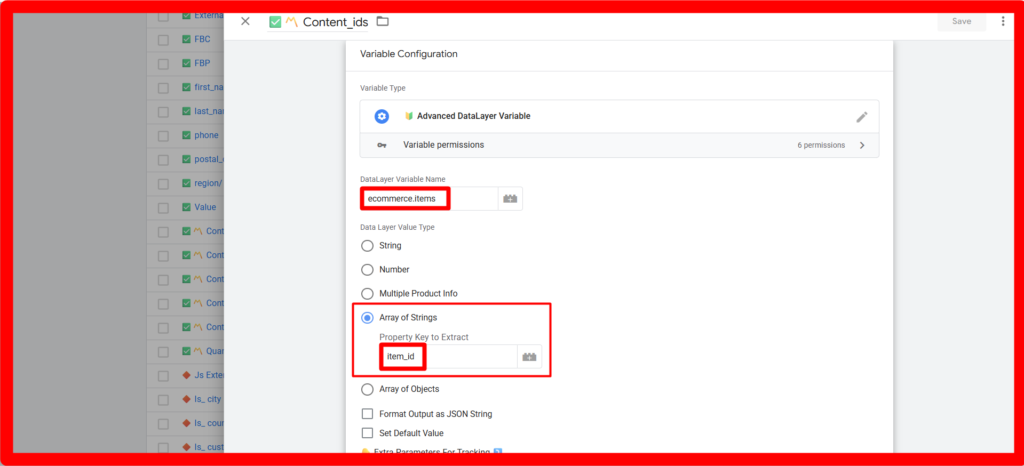
A. Array of Strings Mode
Use this mode when you want to convert an array of product objects into a simple array containing only specific keys (such as an array of IDs).
- DataLayer Variable Name:
ecommerce.items - Data Layer Value Type: Select
Array of Strings - Property Key to Extract:
item_id - Returned Output:
["SKU-001", "SKU-002"]
(If your Data Layer already contains a flat array of strings like ["SKU-001", "SKU-002"], you can leave Property Key to Extract empty).
B. Multiple Product Info Mode (Combined Text or Numbers)
Use this mode when you want to pull product details across all items into a single string or calculate item totals.
1. String Mode (Comma Separated Values):
- DataLayer Variable Name:
ecommerce.items - Data Layer Value Type: Select
Multiple Product Info - Format Output As: Select
String Mode - Property Key to Extract:
item_name - Returned Output:
"T-Shirt, Jeans"
2. Number Mode (Total Calculations):
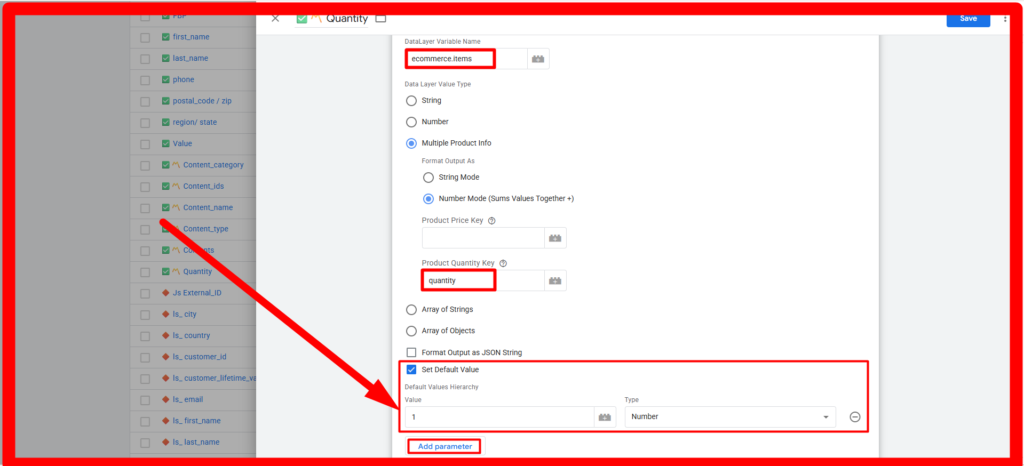
- DataLayer Variable Name:
ecommerce.items - Data Layer Value Type: Select
Multiple Product Info - Format Output As: Select
Number Mode (Sums Values Together +) - Product Price Key:
price - Product Quantity Key:
quantity
How it works:
- If both Price Key and Quantity Key are provided, it calculates
(Price × Quantity) for every item and returns the grand total: (20.00 × 2) + (80.00 × 1) = 120.00. - If only Quantity Key is provided, it sums up all item quantities:
2 + 1 = 3. - If only Price Key is provided, it sums up item prices without multiplying by quantity:
20.00 + 80.00 = 100.00.
4. Converting Arrays of Objects (Key Renaming & Column Mapping)
Different advertising platforms require different key names in item arrays. For example, Facebook Meta Pixel requires id and quantity, whereas GA4 uses item_id and quantity.
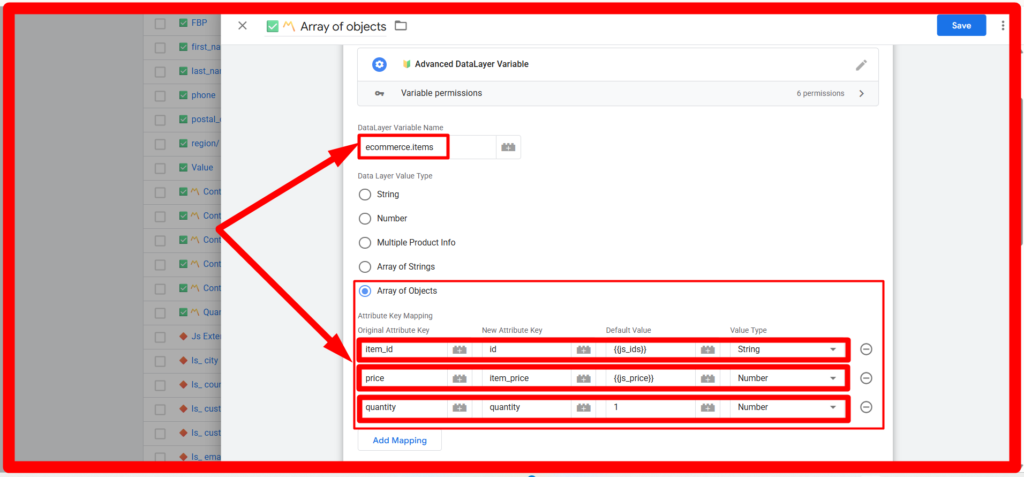
Use Array of Objects Mode to automatically map old key names to new key names across all products.
Configuration Setup:
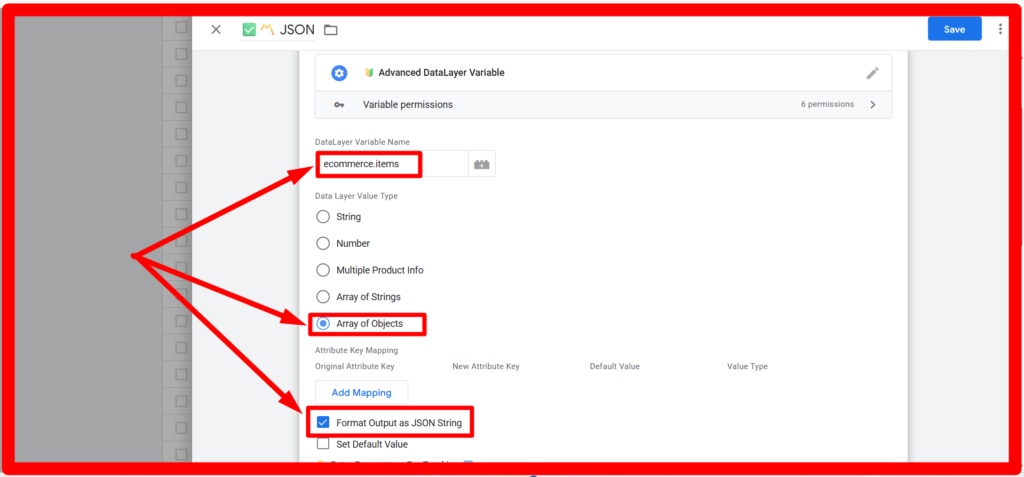
- DataLayer Variable Name:
ecommerce.items - Data Layer Value Type: Select
Array of Objects - Key Mapping Table:
| Old Key (In Data Layer) | New Key (For Ad Platform) | Value Type | Row Default (If Missing) |
|---|
item_id | id | String | DEFAULT_SKU |
price | item_price | Number | 0.00 |
quantity | quantity | Number | 1 |
Resulting Output Object:
[
  { "id": "SKU-001", "item_price": 20.00, "quantity": 2 },
  { "id": "SKU-002", "item_price": 80.00, "quantity": 1 }
]
You can force any variable output to match the exact data type required by your tag.
- String Casting: Converts numeric values like
120 to "120". - Number Casting: Converts string values like
"120.50" to number 120.5.
- Format Output as JSON String: Check this option if an ad platform expects stringified JSON instead of an array or object.
// Checkbox OFF (Raw Object):
[{ "id": "SKU-001" }]

// Checkbox ON (Stringified JSON):
"[{\"id\":\"SKU-001\"}]"
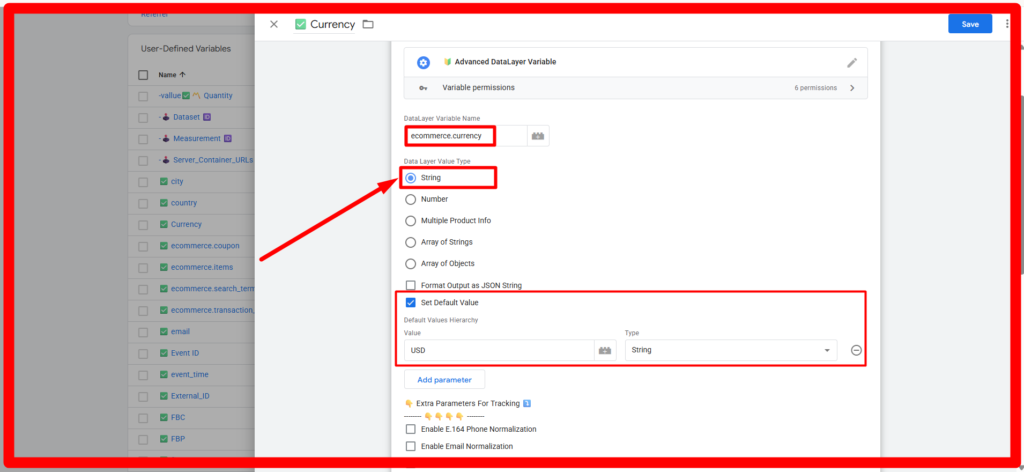
6. Setting Default Fallback Values
If a Data Layer property is missing, null, or empty, your tags might fail. You can enable Set Default Value to provide a fallback chain.
How to Configure:
- Check Set Default Value.
- Add fallback rows in your preferred order of priority.
Fallback Hierarchy:
Row 1: [ Default Value: "0.00" ] -> [ Value Type: Number ]
If the Data Layer value fails to load, the variable immediately returns your configured default value instead of
undefined.
7. Data Normalization: Phone Numbers & Emails
Platforms like Meta CAPI, TikTok API, and Google Enhanced Conversions require customer data to be formatted cleanly before sending.
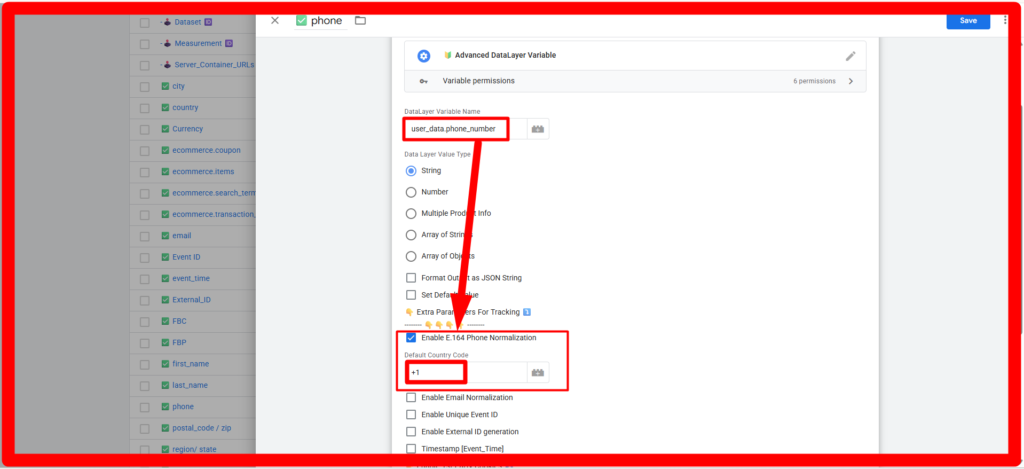
A. E.164 Phone Normalization
Check
Enable E.164 Phone Normalization and enter your default country code (e.g.,
+1 or
+880).
- Input:
01712345678 -> Output: +8801712345678 - Input:
(555) 019-2834 -> Output: +15550192834 - Input:
+44 7911 123456 -> Output: +447911123456
B. Email Normalization
Check
Enable Email Normalization to automatically clean user inputs.
- Converts text to lowercase.
- Removes line breaks, tabs, and accidental trailing spaces.
- Extracts valid email addresses while ignoring surrounding noise.
- Example:
User.Name@Domain.COM \n -> Output: user.name@domain.com
8. Generating Tracking IDs: Event ID, External ID & Timestamp
Deduplication between browser events and server-side Conversion APIs requires synchronized tracking identifiers.
A. Unique Event ID
Check
Enable Unique Event ID to generate a single matching Event ID across both web and server containers.
- Output Format:
[BrowserID]_[PageLoadID]_[GTMUniqueEventID] - Example:
1712345678901_9876543210_12
B. External ID Generation
Check
Enable External ID generation to create and preserve a persistent user ID.
- Automatically checks URL parameters for
?external_id=.... - Checks for an existing
external_id cookie. - If not found, generates a unique UUID (e.g.,
f47ac10b-58cc-4372-a567-0e02b2c3d479) and saves it in a 1-year first-party cookie.
C. Event Timestamp
Check
Timestamp [Event_Time] to return the current unix epoch timestamp in seconds.
- Output Example:
1712345678
9. Extracting First-Party Cookies for All Platforms
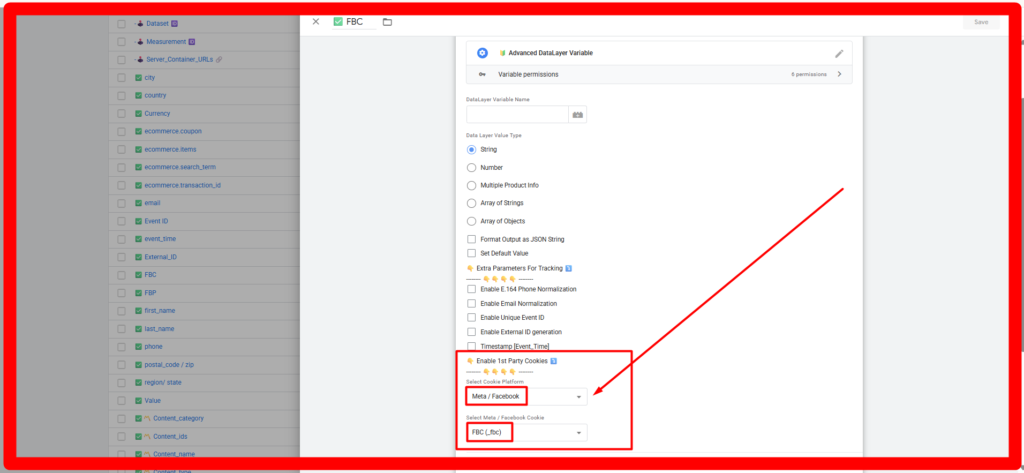
Instead of creating separate cookie variables for each advertising network, you can extract first-party cookies directly using our built-in selector.
How to Configure:
- Scroll down to Select Cookie Platform.
- Select your ad network from the dropdown list.
Supported Platforms:
- Facebook Meta (_fbp / _fbc)
- TikTok (_tt_enable_cookie / _ttp)
- Google Ads / GA4 (_gcl_au / _ga)
- Pinterest (_epik)
- Snapchat (_scid)
- Microsoft Bing (_uetvid)
- Klaviyo, LinkedIn, Taboola, Outbrain, Awin, Rakuten, Postscript, OpenAI & Custom Cookies
10. Quick Reference Summary Table
| Goal | Mode to Choose | Key Fields to Fill |
|---|
| Extract single value | String or Number | DataLayer Variable Name |
| Extract array of IDs | Array of Strings | DataLayer Variable Name + Property Key |
| Combine product names | Multiple Product Info (String) | DataLayer Variable Name + Property Key |
| Calculate total revenue | Multiple Product Info (Number) | DataLayer Variable Name + Price & Quantity Keys |
| Rename array keys | Array of Objects | Mapping Table (Old Key -> New Key) |
| Standardize phone/email | Normalization Checkboxes | Enable Phone or Email Normalization |
| Deduplicate Browser & CAPI | Unique Event ID | Enable Unique Event ID |
| First-Party Cookie Retrieval | Cookie Platform Dropdown | Select Target Platform |
Conclusion
By utilizing a single, unified variable template in Google Tag Manager, you eliminate the need for dozens of custom JavaScript scripts. Whether you need single product extraction, multi-product revenue aggregation, or privacy-compliant user normalization, this variable template streamlines your tracking architecture.